

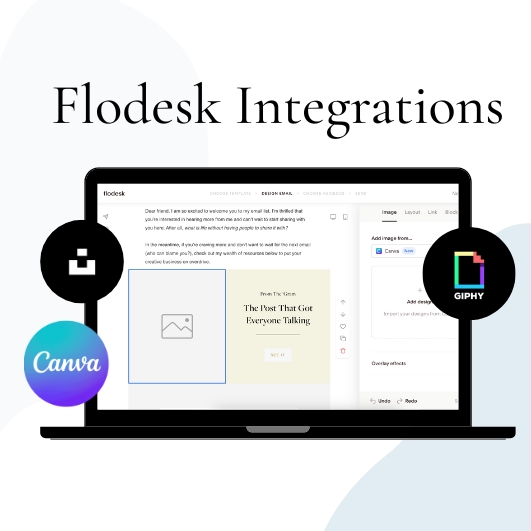
If you are in the business world, you have heard a million times how important email marketing is. If you’re investing in Flodesk, you are already on the right path but there are some features that you can master that will make creating emails so much easier (and faster). The Flodesk integrations that are available will help you create beautiful emails without over-clicking and saving.
The Email Templates Available in Flodesk
One reason why I switched to Flodesk was because of the beautiful templates they had available. When you start an email, they give you an abundance of email templates to choose from. When I looked through them I felt like I could customize any of the templates to make my email creation process faster.
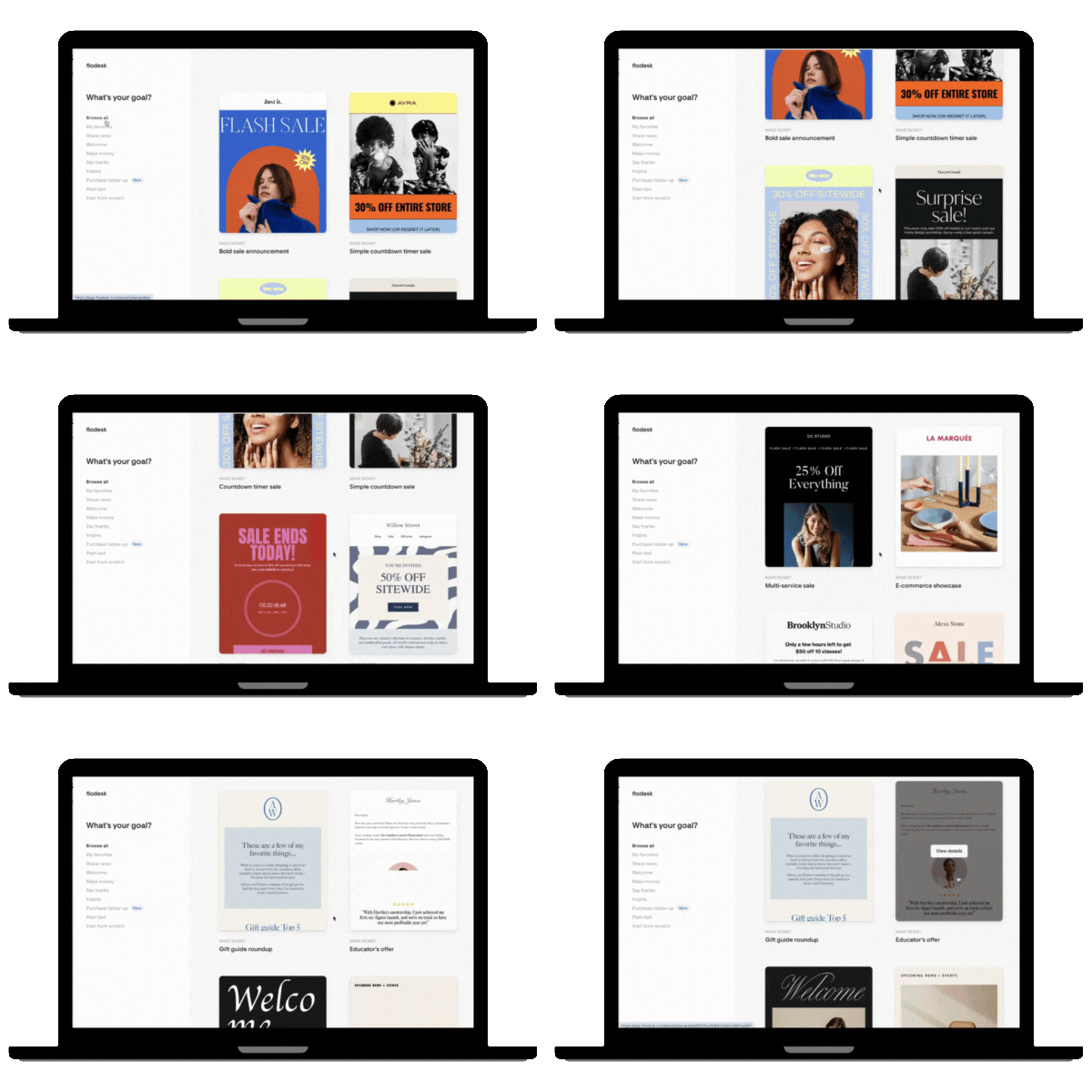
Eventually, I started realizing I enjoyed starting from scratch and piecing together emails from the template sections they provided. I could easily drag and drop the different sections that I loved into an email and customize them to what I wanted.
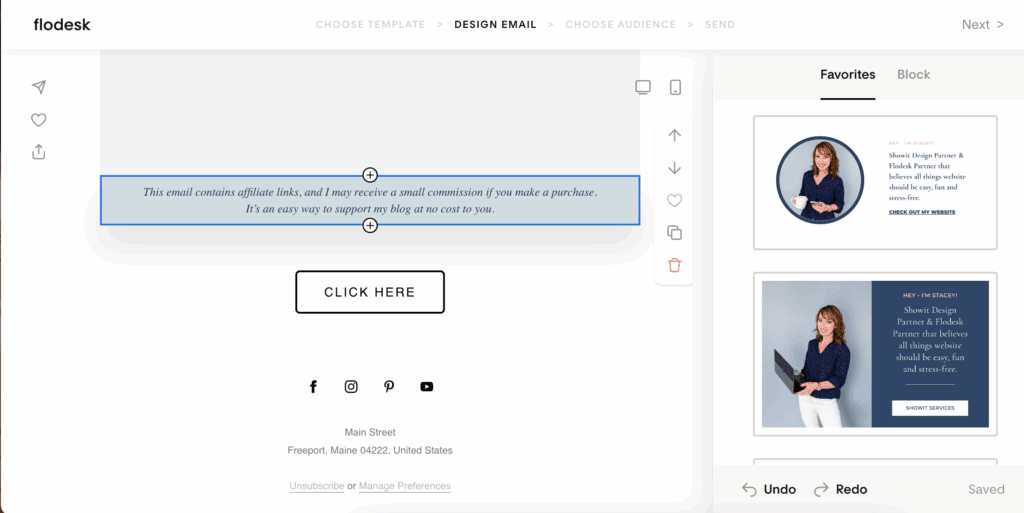
I also stumbled across this amazing “favorites” feature which you have to check out. It basically gives you the ability to create pieces that are always in your emails and save them as favorites. Then you can quickly drop them into your emails. I find this particularly useful for the bottom of my emails where I always want my Flodesk Partner Logo, Showit Design Partner Logo and affiliate links. If you want to see how I created these favorite sections, jump over to this Instagram reel!
At this point, you have the structure of your email ready to go. Now it is time to add in the content like images and fun GIFs. That is where the integrations come into play!
Fact: I Talk In Gifs
If GIF is a communication technique, than you’re talking about me. I love talking in GIFs and usually include them in emails and even blog posts.
If I want to include a GIF in an email, these are the steps I would normally have to take:
- Go to my favorite GIF website
- Search for a GIF (typically “The Office” or “Michael Scott”)
- Find the GIF
- Right click
- Save as
- Go back to Flodesk
- Drop the image layout into my email
- Click the image block
- Upload the GIF
Phew. I’m exhausted. Luckily…I can save a lot of time with those steps because Flodesk has a GIF integration. Now my steps are cut in half –
Step 1: In Flodesk, drop the image layout into my email
Step 2: Click the image block and select Giphy
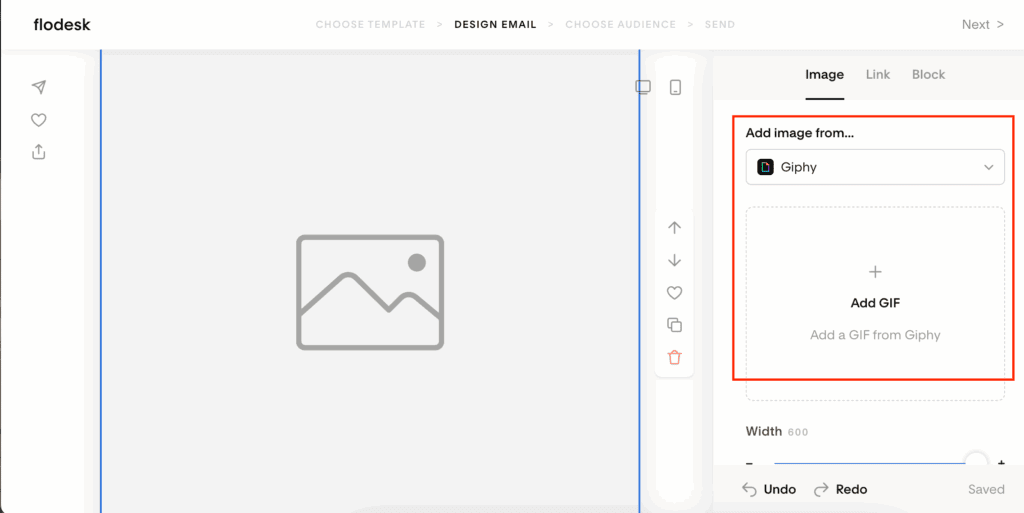
3. Search and click the gif I want (obviously from The Office)
4. Select it
That’s it! 🥳 As someone who speaks in GIF frequently, this is such a time saver.
Stock Photo Integration with Flodesk
If you are a newer business and just starting out building your list, you may not have a ton of photos to use in your email marketing. This is totally ok! There are a lot of royalty free stock image sites out there, and the Flodesk integration with Unsplash makes things so much easier for you. You follow the same steps as the GIF integration, but you select Unsplash. You have the entire Unsplash library available to you. Rather than leaving Flodesk, finding an image, saving and re-uploading – it is all right there for you. You also don’t have to worry about images being “legal” to use since Unsplash is a royalty free site.
Let’s Get Fancy with a Canva Integration
This was honestly the last integration I used in Flodesk…and I regret not using it sooner. Basically you can make graphics in Canva and use them inside Flodesk. Tip: use the same graphics you make for your emails in your social media posts. Here is how you can start:
- Start with creating the graphics in the Instagram post size (you can choose any size but this is the best choice if you want to plan on using the same graphics for social media)
- After you are done creating the graphics, go into Flodesk and start creating your email
- Put an image block into your email
- Use the dropdown to “Add image from” Canva. When you first do this you will have to connect to your Canva account. This is the only time you will have to do this.
- Then click “Add design”
- This will pop up all of the designs you have in Canva. If you created graphics with multiple pages, you can select the main design and then you can choose the page you want to import.
You could even design your whole email in Canva in different pieces, and then bring each piece into Flodesk to create a unique email. Here are some size dimensions to keep in mind when you are creating the graphics in Canva:
- Banners/Headers: 600 pixels wide x 200 pixels high
- Content blocks: 600-800 pixels wide x 400-1200 pixels high
- Footer: 600-800 pixels wide x 100-250 pixels high
- CTA buttons: 50-200 pixels wide x 40-70 pixels high
Free Canva Templates to use with Flodesk
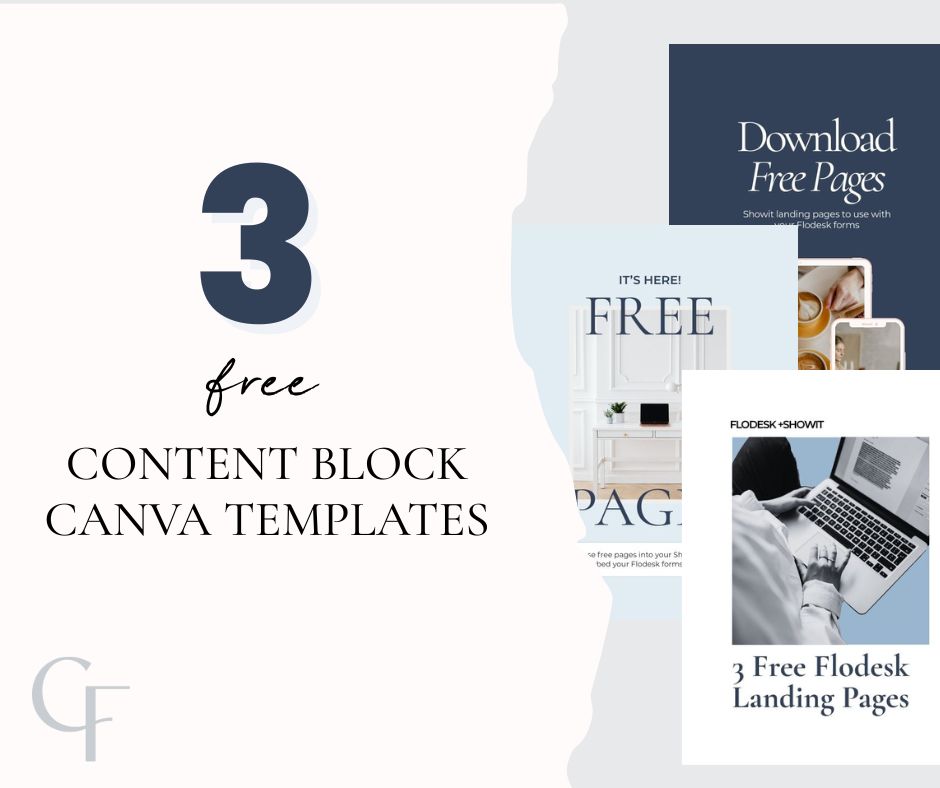
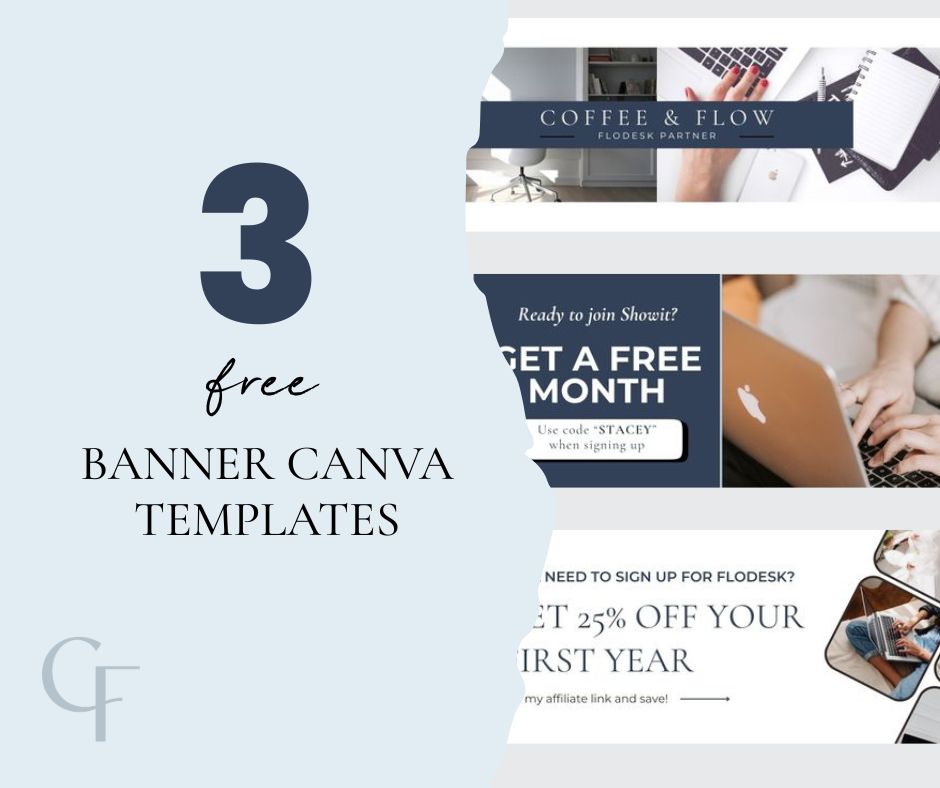
I have created some free Canva templates that you can use to get started with creating emails in Flodesk. I hope they are helpful for you to get started!
Get the Content Block Templates Here >
Get the Banner Templates Here >
Create Beautiful Canva Email Templates
As you start building your email list, one of the best ways is through freebies. Create a freebie is a lot of work, but if you have templates it will make the process a lot faster. Start by creating beautiful templates in Canva to start. This way you can just jump into Canva, edit the graphics, and then fill them all into Flodesk quickly when the time comes. Here is another guideline to building out your Canva templates for freebies:
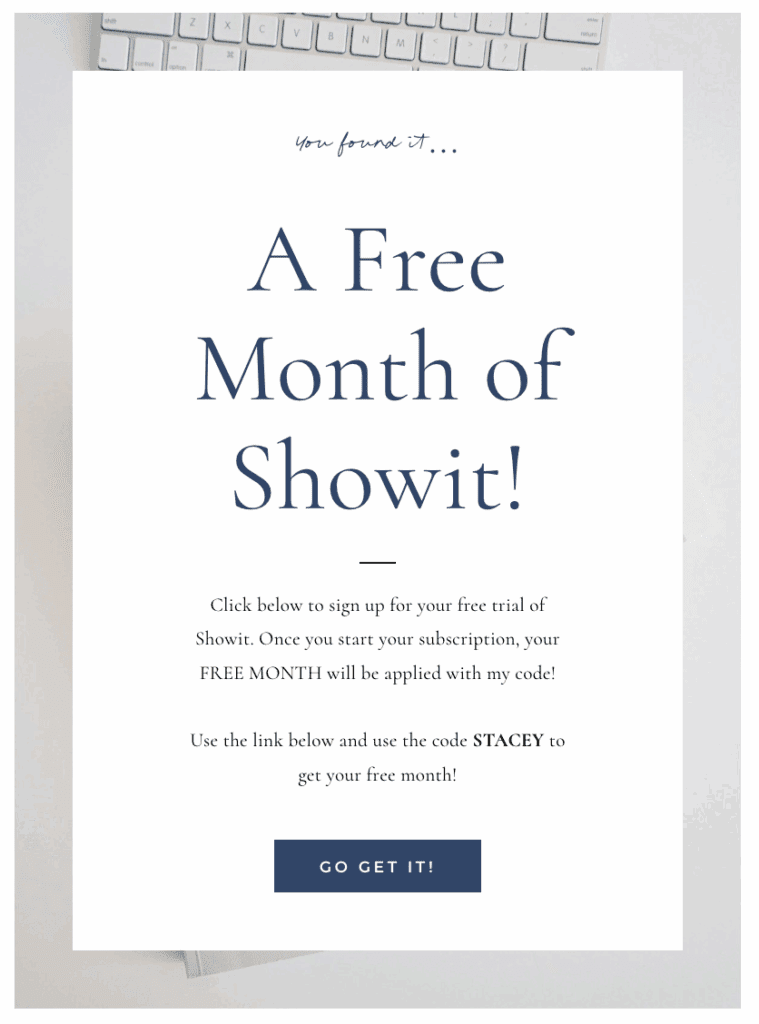
A Main Image
This would be at the top of your email, announcing the freebie is there! An ideal size would be 600 x 800.
A message from you
I would use a content block from Flodesk for this one. This could be a message from you explaining how to use the freebie, any instructions that the user should know, and anything else you want to tell them! This would typically be text based and then end with a button to download the freebie.
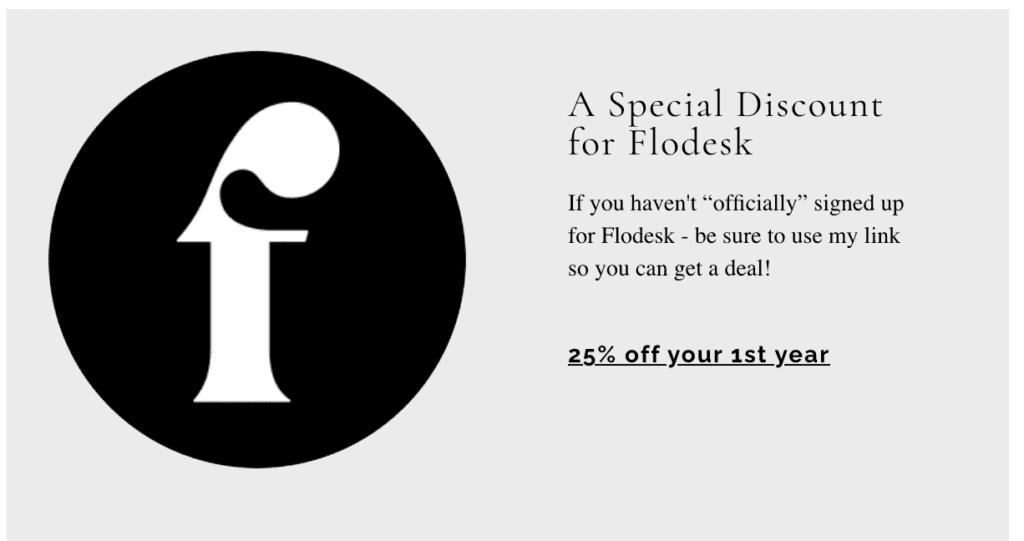
Additional Resources
You could end the email with some additional resources (with affiliate links!) that the person might need to pair with the freebie. Think about creating a block for all of your affiliates in Canva, and then you can easily bring them into your emails when you need them! Ideal size in Canva would be 600 x 400.
If you have any other questions, don’t hesitate to contact me! I’m a Flodesk Partner and Showit Design Partner, and happy to answer all your questions.


